
PDF Compression Test
Updated by Khokhar Sab
How much a PDF shrinks depends almost entirely on what is inside it. We built five typical PDFs and ran each through every level of our Compress PDF tool, measuring the file size and whether the result stays readable. The full results are below and as a CSV file you can reuse with a link back.
How much does compressing a PDF reduce its size?
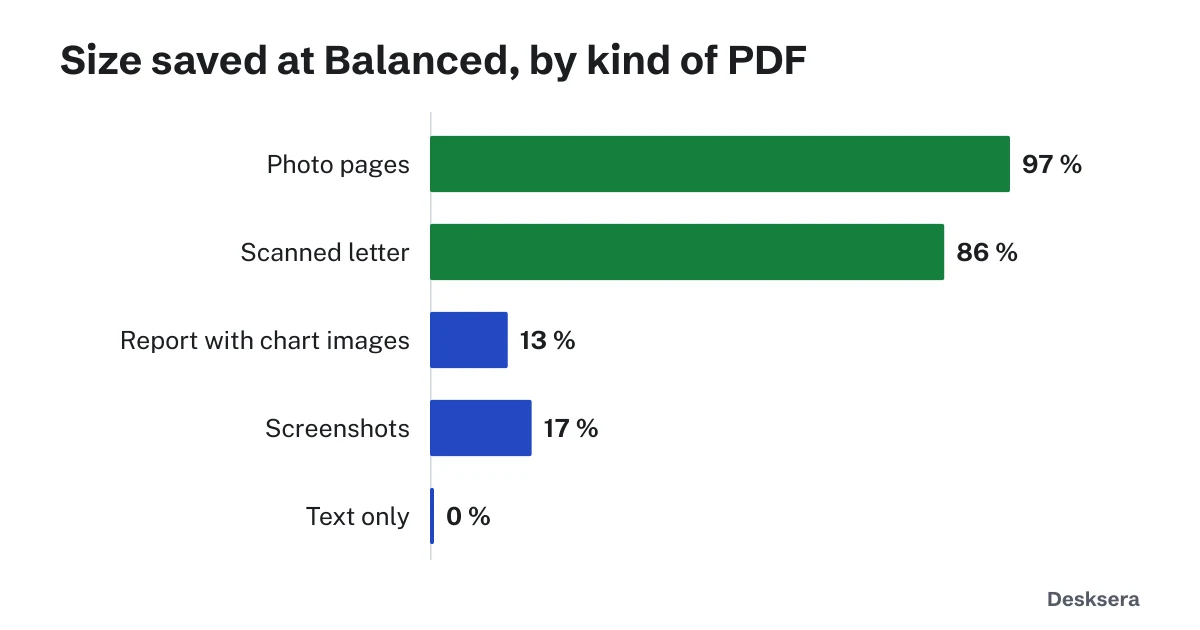
It depends on the pictures inside. In our test at Balanced, three 12-megapixel photo pages went from 5,014 KB to 169 KB, a 97% saving, and a 300 dpi scanned letter saved 86%. Chart images and screenshots saved under a fifth, and a text-only report saved nothing.
| Document | Original | Light | Balanced | Strong | Balanced, black and white |
|---|---|---|---|---|---|
| Photo pages (camera photos, 12 MP) | 5,014 KB | 698 KB (86%) | 169 KB (97%) | 86 KB (98%) | 137 KB (97%) |
| Scanned letter (300 dpi, gray paper) | 5,912 KB | 2,244 KB (62%) | 808 KB (86%) | 428 KB (93%) | 806 KB (86%) |
| Report with chart images (PNG) | 96 KB | 96 KB (0%) | 84 KB (13%) | 51 KB (47%) | 66 KB (31%) |
| Screenshots (PNG, 1920 × 1080) | 452 KB | 452 KB (0%) | 376 KB (17%) | 205 KB (55%) | 370 KB (18%) |
| Text only (10 pages, standard font) | 24 KB | 24 KB (0%) | 24 KB (0%) | 24 KB (0%) | 24 KB (0%) |
Size after compression, with the share saved in brackets.
Does compressing a PDF make text hard to read?
Not at Light or Balanced in our test. OCR, which needs clear letters, read 100% of the known words in the compressed scanned letter at every level and in the screenshots at Light and Balanced. At Strong, small screenshot text dropped to 83.3% of words read, a sign that fine print starts to blur.
| Quality check | Light | Balanced | Strong |
|---|---|---|---|
| Scanned letter: words OCR could read | 100% | 100% | 100% |
| Screenshots: words OCR could read | 100% | 100% | 83.3% |
| Photos: PSNR at screen size (higher is closer) | 43.6 dB | 40.5 dB | 38.8 dB |
Text in a PDF that is real text, not a picture, is never touched by compression, so it stays sharp at every level. Only pictures, including scanned pages, lose detail.
Which compression level should I use?
Use Balanced for everyday sharing: it saved the most where it mattered while keeping every word readable in our test. Choose Light for files you will print, since it keeps more detail. Choose Strong to fit a tight limit with photos or normal-size text, and check small print. Black and white saves a little more on color pages.
When you have a size limit to meet, such as 1 MB for an upload form, use Compress PDF's target size or a size page such as compress PDF to 1 MB; it picks the lightest level that fits. For an attachment, compress the PDF for email and see our guide Email Attachment Size Limits for PDFs, and for what makes files large in the first place, Why Is My PDF So Large?
How was the test done?
We generated five PDFs in code so anyone can repeat the test: three 12-megapixel photo pages, a three-page 300 dpi scan of a typed letter on gray paper, a report with four chart images, four screenshots and a ten-page text report. Each was compressed with the same engine the Compress PDF page runs, at each level, on our test computer.
Photo quality is PSNR against the original picture with both shown 1,000 pixels wide. For pages of text, PSNR is misleading, because tiny shifts at sharp letter edges dominate it, so we ran OCR (Tesseract, the engine our OCR PDF uses) on each compressed page and counted the known words it read. The code is in src/data/guides/compression-study.test.ts; results were recorded on 2026-10-12. In a browser, JPEG encoding differs slightly from the test, so exact sizes vary a little.
Try it on your own file: open Compress PDF and compare the levels before you download.
Tools in this guide
More guides
- Email Attachment Size Limits for PDFsEach provider's limit from its own help page, and why a PDF grows 37% inside an email.
- Why Is My PDF So Large?What takes up the space in a PDF, measured, and how to fix each cause.
- PDF Too Large to Upload?Real scans pushed toward 5 MB to 100 KB limits: what fits, and what to do when compression is not enough.
Sources and further reading
- The full results as CSV (this site): every document and level, free to reuse with a link back
- Tesseract OCR (Apache-2.0): the engine used for the readability check