
How to Save a Webpage as a PDF
Updated by Khokhar Sab
Every desktop browser can save a web page as a PDF through its Print dialog: choose Save as PDF instead of a printer. The result keeps the page's text and links, so you can search and click them later. A web tool cannot fetch a page for you without a server, so for HTML files you already have, use HTML to PDF; for live pages, use the browser steps below.
How do I save a web page as a PDF in Chrome or Edge?
Open the page and press Ctrl+P on Windows or Cmd+P on a Mac, or choose Print from the browser menu. In the print preview, set Destination (Printer in Edge) to Save as PDF, check the layout and pages, and click Save. Choose a folder and a file name, and the PDF is saved on your computer.
- Open the page and press Ctrl+P (Windows) or Cmd+P (Mac).
- Set Destination to Save as PDF.
- Optional: under More settings, turn off Headers and footers or turn on Background graphics.
- Click Save and choose where to keep the file.
How do I save a web page as a PDF in Firefox?
Click the menu button, then Print, to open the print preview. Under Destination, select Save to PDF. Choose the orientation and pages, and open More settings for paper size, margins, headers and footers, and whether to print backgrounds. Click Save, then pick a folder. Firefox can also print a simplified, clutter-free version of some pages.
How do I save a web page as a PDF on a Mac?
In Safari, open the page and choose File, then Export as PDF, and pick a name and folder. You can also choose File, Print, then open the PDF menu at the bottom left and choose Save as PDF, which offers the same paper and scale settings as printing. Chrome, Edge and Firefox on a Mac work as described above.
Should I print to PDF or take a screenshot?
Print to PDF. In our test with Chrome 155, printing a long guide page gave a 235 KB, 6-page PDF with 5,573 characters of searchable text and 32 clickable links. A screenshot of the same page turned into a PDF was 308 KB, held no text and no links, and covered only what fit in the capture.
| Page and method | Pages | Size | Searchable characters | Links | Shows the web address |
|---|---|---|---|---|---|
| A long guide page: Print to PDF, header and footer on | 6 | 263 KB | 6,251 | 32 | Yes |
| A long guide page: Print to PDF, header and footer off | 6 | 235 KB | 5,573 | 32 | No |
| A long guide page: Screenshot turned into a PDF | 1 | 308 KB | 0 | 0 | No |
| A tool page: Print to PDF, header and footer on | 5 | 162 KB | 5,507 | 37 | Yes |
| A tool page: Print to PDF, header and footer off | 5 | 135 KB | 4,997 | 37 | No |
| A tool page: Screenshot turned into a PDF | 1 | 242 KB | 0 | 0 | No |
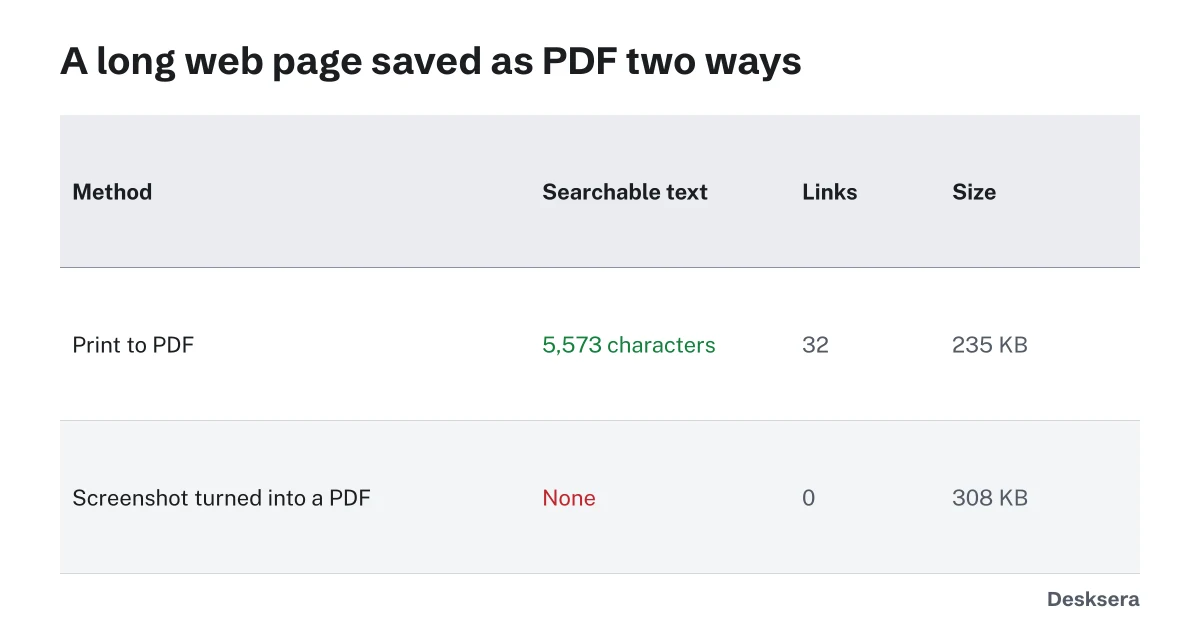
Two pages of this site printed with headless Chrome 155.0.8059.39 on 2026-10-12; the screenshot was a 1280 × 6000 pixel capture. Script: scripts/measure-webpage-pdf.mjs.
A screenshot PDF is still useful as a picture of exactly how a page looked, for example as evidence. To make its text searchable afterward, run it through OCR PDF.
How do I remove the date and address from the PDF?
Turn off Headers and footers in the print settings before saving; in Chrome and Edge it is under More settings, in Firefox it is Print headers and footers. Left on, they print the date, page title, web address and page numbers on every page: in our test they added 678 characters and 28 KB to the guide page's PDF.
Already saved one with them? You can crop the edges off every page with Crop PDF, or combine several saved pages into one file with Merge PDF.
Saved an article as HTML instead? Open HTML to PDF to turn the file into a clean PDF in your browser.
Tools in this guide
More guides
- How to Scan a Document on iPhone and AndroidFree built-in scanning on iPhone and Android, and how far a phone scan shrinks.
- Why Is My PDF So Large?What takes up the space in a PDF, measured, and how to fix each cause.
- Searchable vs Scanned PDFOne invoice as text, as a scan and after OCR: how to tell which you have, and how to fix a scan.
Sources and further reading
- Google Chrome Help: Print from Chrome: the Print dialog and Save as PDF
- Firefox Help: How to print web pages in Firefox: Save to PDF, headers and footers, backgrounds