
HEIC vs JPG
Updated by Khokhar Sab
HEIC is the photo format iPhones save by default; JPG (JPEG) is the format nearly every website, form and app accepts. When an upload form or a browser refuses an iPhone photo, HEIC is usually why. Converting fixes it: HEIC to PDF turns iPhone photos into a PDF in your browser, without uploading them.
What is HEIC, and how is it different from JPG?
HEIC is a photo stored in the High Efficiency Image File Format (HEIF, ISO/IEC 23008-12) using HEVC, the compression from H.265 video. JPG is the JPEG format that cameras and websites have used since the early 1990s. HEIC can hold several images, thumbnails and metadata in one file; JPG holds one picture and works almost everywhere.
The Library of Congress describes "heic" as the most widely used brand for HEIF files with HEVC encoding, used by Apple's iPhones and by some Android phones and cameras. Phones save HEIC to use less storage; the trade-off is that the files open in fewer places.
Why do my iPhone photos fail to upload?
An upload form accepts only the formats it lists, and HEIC is often missing. The USAJOBS upload page, for example, lists GIF, JPG, JPEG, PNG, RTF, TXT, ODT, Word and PDF files. Browsers matter too: in our test, Chrome could not display a HEIC photo at all, while it showed JPG and WebP pictures without trouble.
| Browser | HEIC | JPG | WebP |
|---|---|---|---|
| Chrome 152 (Windows) | Not shown | Shown | Shown |
| Chrome 155, headless (Windows) | Not shown | Shown | Shown |
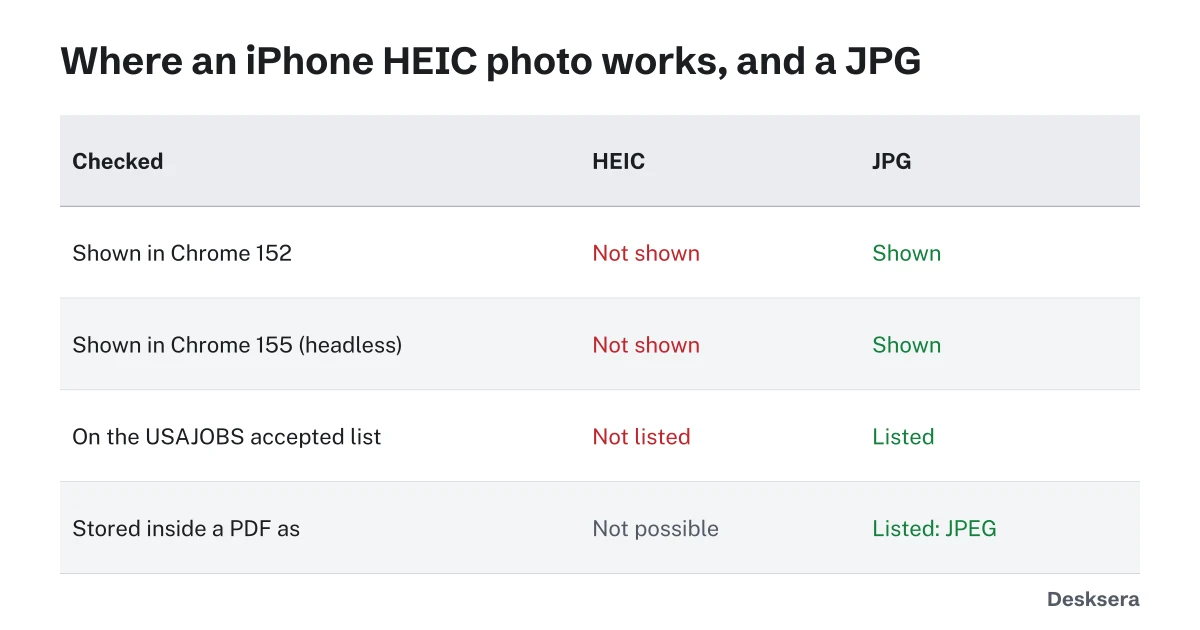
Tested 2026-10-12 with libheif example.heic, 1280 x 854, 2 images inside. The Library of Congress page noted in 2020 that there was no browser support for HEIF images.
If a form says the file type is wrong, convert the photo first.
Can I open HEIC files on Windows?
Not out of the box on every PC. The Library of Congress notes that Windows 10 needs codec extensions installed before it can open HEIC photos. Without them, double-clicking a HEIC file fails or shows nothing. The simplest fix for one-off files is to convert them to JPG or PDF, which open everywhere, including in any browser.
Our HEIC to PDF decodes HEIC in the browser itself, so it works on a Windows PC without any extension and without uploading the photos.
How do I convert HEIC to JPG or PDF?
For JPG files, use HEIC to JPG; for one document, use HEIC to PDF. Both run in your browser. Inside a PDF each photo is stored as JPEG, because PDF has no HEIC image type. Our sample HEIC file (701 KB, holding two images) became a 455 KB PDF.
On an iPhone, Settings, Camera, Formats, Most Compatible saves new photos as JPG; existing photos stay HEIC. For photos you already have, open HEIC to JPG or HEIC to PDF. To put several converted photos in one document, JPG to PDF takes JPG, PNG and WebP pictures as well.
Have iPhone photos to send? Open HEIC to PDF, add them, and download a PDF any form will take.
Tools in this guide
More guides
- How to Scan a Document on iPhone and AndroidFree built-in scanning on iPhone and Android, and how far a phone scan shrinks.
- PDF vs JPG: Which Should You Send?Text, multi-page documents and photos saved both ways: sizes, sharpness and search compared.
- How to Prepare PDFs for a Job ApplicationFormat, one file or several, size limits, file names and checks, with a real pack measured.
Sources and further reading
- Library of Congress: High Efficiency Image File Format, HEIC/HEIX brands: Apple default since iOS 11, Windows codec note, browser support
- Library of Congress: High Efficiency Image File (HEIF) Format, MPEG-H Part 12: the HEIF standard, ISO/IEC 23008-12
- USAJOBS Help Center: How to add a resume to your profile: an example of a form's accepted file types